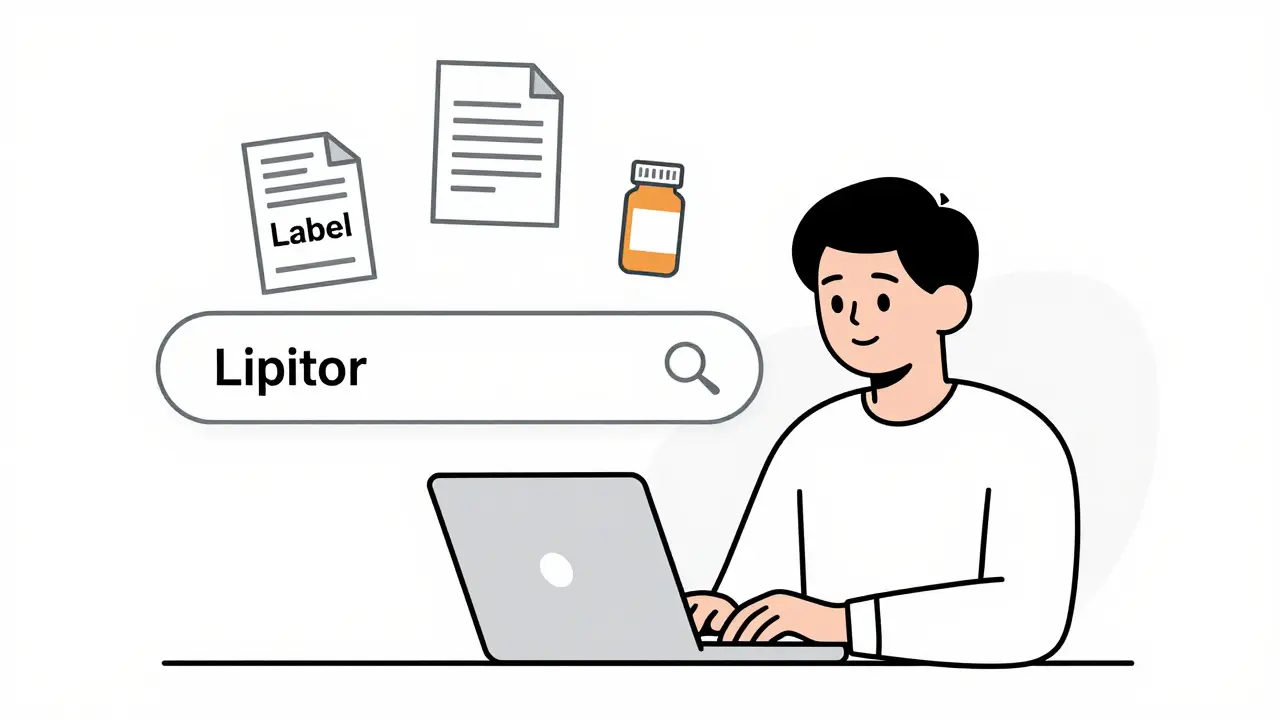
Want to find out when a drug was approved by the FDA? Or need the full prescribing label, patient information, or review documents from the agency? You don’t need to call them. You don’t need to file a Freedom of Information Act request. You just need to use Drugs@FDA.
Drugs@FDA is the U.S. Food and Drug Administration’s free, public database that holds official records for nearly every human drug approved in the United States since 1939. It’s not a marketing site. It’s not a drug review blog. It’s the raw regulatory record-approval letters, clinical review summaries, labeling history, and correspondence between the FDA and drugmakers. Healthcare workers, researchers, pharmacists, and even patients use it daily to verify what’s real, what’s approved, and what’s documented.
What You’ll Find in Drugs@FDA
Drugs@FDA doesn’t just list drug names. It gives you the full regulatory story. For drugs approved since 1998, you can download:
- The full prescribing information (the official drug label)
- Patient Medication Guides
- Approval letters from the FDA
- Review documents written by FDA medical and pharmacology staff
- Correspondence between the agency and the manufacturer
For older drugs (approved before 1998), the details are more limited-usually just the brand name, active ingredient, approval date, and applicant. But even that’s more than you’ll get from Google or a pharmacy website.
It includes both brand-name drugs and generics. It includes biologics like insulin and vaccines. It even includes drugs that have been discontinued or withdrawn-because the FDA keeps the full record, not just the current ones.
How to Search: Three Ways to Find What You Need
You don’t need to be a tech expert to use Drugs@FDA. But you do need to know which search method to use-and when to avoid the wrong one.
1. Use the Main Search Box (Best for Most People)
On the Drugs@FDA homepage, you’ll see a big search box right at the top. That’s your best friend.
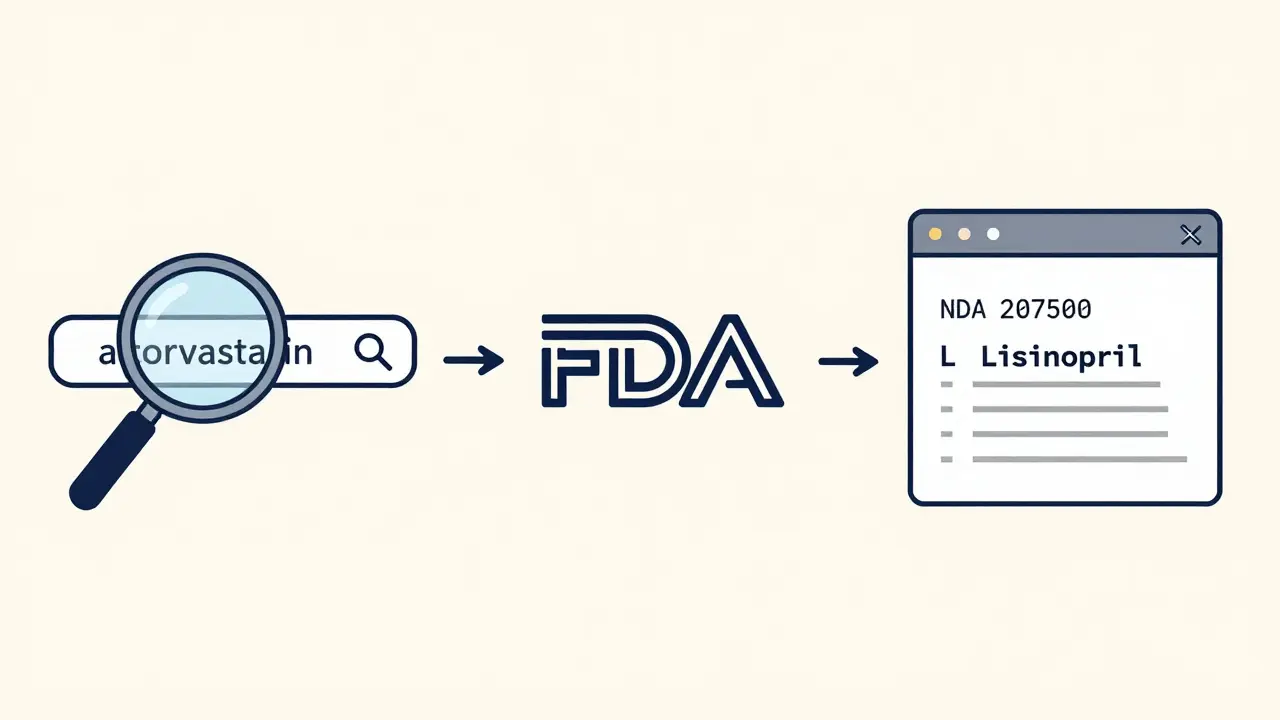
Type in:
- The brand name: Lipitor
- The generic name: atorvastatin
- The active ingredient: metformin
- The application number: NDA 207500 (if you know it)
It doesn’t matter if you use uppercase or lowercase. The system is smart enough to match variations. If you type lisinopril, it will return Prinivil, Zestril, Qbrelis, and Zestoretic-all products containing lisinopril.
This is the only search method that finds combination products and brand names tied to the same active ingredient. Use this one first.
2. Use the A-Z Drug Name Index (Use With Caution)
Scroll down the homepage and you’ll see a list of letters: A, B, C… Z. Click any letter, and you’ll get a list of drug names starting with that letter.
Here’s the catch: This search only shows exact matches to the official established (generic) name.
If you search for LISINOPRIL in the A-Z index, you’ll see only the generic version. You won’t see Prinivil, Zestril, or Zestoretic. If you’re looking for a brand name, this method will fail you.
Use the A-Z index only if you’re certain you’re searching for the generic name and want to browse alphabetically. Otherwise, skip it.
3. Search by Application Number (For Experts)
Every approved drug has a unique application number: NDA (New Drug Application), ANDA (Abbreviated New Drug Application for generics), or BLA (Biologics License Application).
These numbers are usually found in FDA documents, scientific papers, or on the drug’s official label. If you have one, paste it directly into the main search box. You’ll get the full file for that specific product, no matter what brand names it’s sold under.
This is how FDA reviewers and pharmaceutical professionals find the exact approval file they need. For most people, it’s overkill-but if you’re digging deep, it’s the most precise method.
What You Won’t Find in Drugs@FDA
Drugs@FDA is powerful, but it’s not everything. Know where it stops so you don’t waste time.
- No animal drugs - Those are in Animal Drugs@FDA.
- No detailed patent information - For patents and exclusivity, use the Electronic Orange Book.
- No section-by-section label search - If you need to find all labels mentioning “heart failure” or “BOXED WARNING,” use FDALabel.
- No biologicals-only data - For biologics like Humira or Keytruda, Drugs@FDA includes them, but the Purple Book gives you more detail on biosimilars and interchangeability.
Think of Drugs@FDA as your starting point. It tells you if a drug was approved, when, and what documents exist. Then, if you need more-like patent expiration dates or specific warning text-you go to the specialized tools.
Real-World Use Cases
Here’s how people actually use this database every day:
- A pharmacist in Ohio checks Drugs@FDA to confirm whether a new generic version of a blood pressure drug was officially approved before dispensing it.
- A researcher in Boston pulls the FDA’s clinical review of a diabetes drug for a systematic review paper.
- A patient in Texas wants to know why their new prescription has a black box warning. They download the label from Drugs@FDA to read the exact wording the FDA used.
- A nurse in Chicago looks up the approval date of a vaccine to explain to a skeptical parent why it’s not “new” or “untested.”
These aren’t edge cases. This is routine work for healthcare professionals. And patients who use it are better informed.
Common Mistakes and How to Avoid Them
People get tripped up in the same ways every time.
Mistake 1: Using the A-Z Index for Brand Names
You type in “Zoloft.” You click the A-Z index. Nothing comes up. Why? Because “Zoloft” is a brand name. The A-Z index only lists generic names. Use the main search box instead.
Mistake 2: Assuming All Information Is Available for Every Drug
Some drugs approved in the 1980s have only a one-line entry: name, date, applicant. That’s not a glitch. It’s the record. The FDA didn’t require full documentation back then. Don’t expect the same depth as you’d get for a drug approved in 2020.
Mistake 3: Confusing Drugs@FDA with DailyMed or FDALabel
DailyMed is a repository of labeling text-great for quick copy-paste. FDALabel lets you search inside labels for specific phrases. Drugs@FDA gives you the full approval file, including the FDA’s own review notes. They’re complementary, not interchangeable.
Mistake 4: Not Checking for Multiple Applications
Some drugs have multiple approvals-for different strengths, formulations, or manufacturers. Search results may show several entries. Click each one. The approval dates, labels, and even manufacturer names can vary.
How Often Is It Updated?
Drugs@FDA is updated every single day. New approvals, label changes, safety updates-they show up within 24 hours. That’s faster than most drug databases in the world.
If you’re tracking a new drug, check back in a few days after you hear the news. The FDA doesn’t wait for press releases. They update the database first.
Why This Matters
Drug information online is full of noise. Pharmacies list prices. Blogs give opinions. Social media spreads rumors. Drugs@FDA is the only place where you get the FDA’s own words, in the format they used to make decisions.
That’s powerful. It’s not just about finding a label. It’s about understanding why a drug was approved, what risks were flagged, and how the agency weighed the evidence.
For healthcare providers, it saves time. For patients, it builds trust. For researchers, it’s peer-reviewed data straight from the source.
And it’s free. No login. No subscription. No ads. Just the truth, straight from the regulator.
Next Steps
Go to www.fda.gov/drugsatfda right now. Type in a drug you’re taking or prescribing. Look at the results. Click on the “Label” link. Read the first page of the prescribing information.
That’s it. You’ve just used the same tool the FDA uses to approve drugs. You’re not just a consumer anymore. You’re an informed participant in the system.
Next time you’re unsure about a medication, don’t guess. Don’t ask a friend. Don’t scroll through Reddit. Open Drugs@FDA. Find the official record. You’ll know more than 90% of people who take that drug.
Is Drugs@FDA free to use?
Yes, Drugs@FDA is completely free. No registration, no login, no fees. It’s a public resource funded by U.S. taxpayers and maintained by the FDA for anyone to use.
Can I find generic drugs in Drugs@FDA?
Yes. All approved generic drugs are listed, including their application number (ANDA), approval date, manufacturer, and labeling. You can search by the generic name or the brand name it replaces.
Why doesn’t my drug show up in the A-Z search?
The A-Z index only lists the official established (generic) name. If you’re searching for a brand name like "Crestor" or "Advair," it won’t appear there. Use the main search box instead-it finds both brand and generic names.
Does Drugs@FDA include over-the-counter (OTC) drugs?
Yes, if the OTC drug was approved through a New Drug Application (NDA) or a monograph process that required FDA review. Most OTC drugs follow monographs and aren’t individually approved, so they won’t appear. But newer OTC products, especially those with novel ingredients, are listed.
How do I know if a drug is still on the market?
Drugs@FDA doesn’t track current market status. A drug can be approved but no longer sold. To check if a drug is actively marketed, look at the FDA’s list of approved products with marketing status, or contact the manufacturer. Drugs@FDA tells you if it was approved-not if it’s currently available.
Can I search for drugs by condition or disease?
No. Drugs@FDA doesn’t let you search by indication (like "diabetes" or "depression"). You must search by drug name, active ingredient, or application number. For condition-based searches, use FDALabel or clinical trial databases like ClinicalTrials.gov.
Are there mobile apps for Drugs@FDA?
No official mobile app exists. But the website works well on smartphones and tablets. You can bookmark it or save it to your home screen for quick access. The FDA recommends using the web version for full functionality.


Debra Cagwin
December 28, 2025 AT 20:26